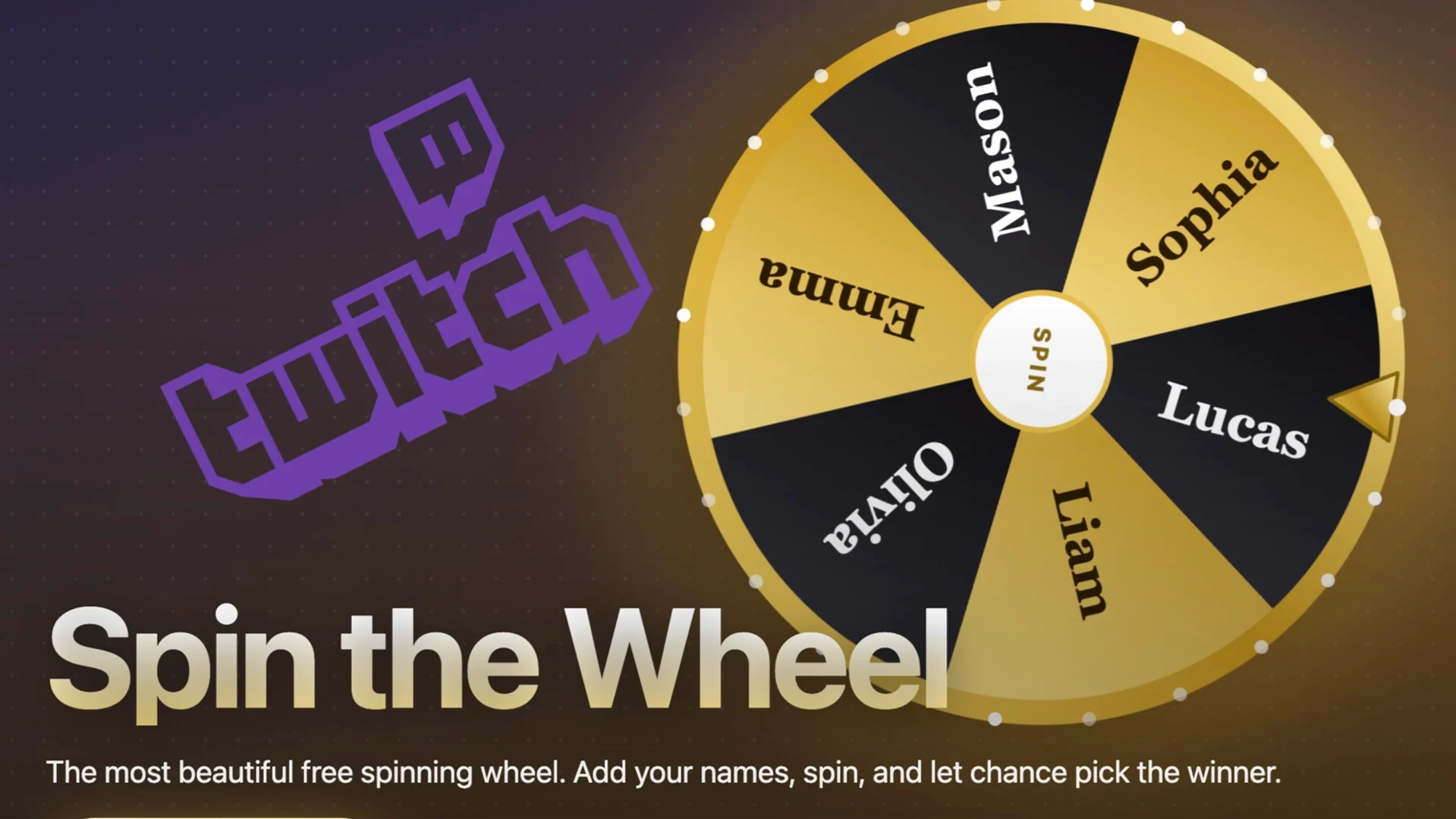
A spinning wheel is one of the easiest ways to make a Twitch stream more interactive. Viewers type a word in chat to join, the wheel spins live on screen, and everyone watches the winner get picked. This guide shows you how to set up a free spin the wheel for Twitch in about five minutes, with chat entries, your own branding and an OBS overlay, plus ideas for using it on stream.
Why use a wheel on your Twitch stream?
A wheel turns a quiet moment into something chat can take part in. It works because the result is random and everyone can see it happen, so nobody can say the streamer picked a friend.
- More chat activity: viewers type to enter, and they stay to see who wins.
- Fair giveaways: every entry has the same chance, and the spin happens live.
- Easy content: let the wheel pick the next game, a challenge or a viewer to play with.
- Your look: add your logo and colors so the wheel matches your overlay.
What you need
- A Twitch channel
- OBS Studio or Streamlabs Desktop
- The free spin the wheel for Twitch (works in any browser)
You don't need a Twitch login, a chat bot or an extension. The wheel reads your public chat directly in your browser, and nothing is sent to PickWhim.
Step 1: Let viewers join from Twitch chat
- Open the stream wheel and go to the Entries tab.
- Choose Twitch chat and type your channel name.
- Pick a join word, for example !join.
- Decide who can join: everyone, or subscribers only. You can also give subscribers extra entries.
- Press Start listening.
Every viewer who types the join word is added to the wheel once. Common bots such as Nightbot and StreamElements are ignored, so they never win your giveaway.
Prefer a fixed list? Paste names into the Entries box instead, one per line. The wheel holds up to 20,000 entries, and on very big wheels it zooms in at the end so viewers can read the winner.
Step 2: Brand the wheel
Open the Brand tab to make the wheel look like part of your stream:
- Put your logo or channel emote in the center of the wheel.
- Choose up to four brand colors for the slices.
- Pick a font, rim and pointer style, or start from one of the ready-made looks.
Your settings are saved in your browser, so the wheel looks the same next time you go live.
Step 3: Add the wheel to OBS
- Click Embed / OBS under the wheel and copy the OBS browser source link.
- In OBS, click + under Sources and choose Browser.
- Paste the link into the URL field and set a width and height that fit your layout. A square size works well.
- Click OK. The wheel appears with a transparent background, so it sits on top of your game or camera.
The OBS link includes your entries, look and Twitch chat settings, so the overlay starts listening to chat by itself. To spin from OBS, right-click the source, choose Interact and press Space or Enter. In Streamlabs Desktop the steps are the same: add a Browser Source and paste the link.
Step 4: Spin and handle the winner
When you spin, a winner banner shows the name on screen. A few settings make live giveaways smoother:
- Winner claim timer: in Settings, give the winner 15 seconds to 2 minutes to answer in chat. If they don't, they are removed and the wheel spins again.
- Remove the winner: take the winner off the wheel so the same person can't win twice.
- Knockout mode: each spin removes one entry until a single champion is left. Great for a dramatic finale.
- Prize round: the first spin picks the winner, and a second wheel picks their prize.
10 Twitch wheel ideas to try
- Giveaway wheel: viewers type !join and the wheel picks the winner of a game key or merch.
- Game picker: add the games you could play next and let the wheel decide.
- Challenge wheel: no-build run, pistol only, inverted controls, speedrun the next level.
- Viewer games: pick which viewers join your next lobby or squad.
- Sub goal reward: when you hit a sub goal, spin for a reward such as a cosplay, a song or a new emote.
- Loadout or character picker: let chance choose your agent, champion or build.
- Song request wheel: put requested songs on the wheel and spin for the next one.
- Break wheel: stretch, drink water, chat round or a quick Q and A.
- Emote of the stream: spin to pick the emote chat should spam for the next hour.
- Mod appreciation: spin to pick which mod gets a shoutout or picks the next game.
Want something bigger than a wheel? Try a live Twitch quiz where chat answers questions, or a marble race where viewers bet on the winning marble.
Tips for fair Twitch giveaways
- Say the rules on stream and in a chat command before you open entries: who can join, the deadline and the prize.
- Close entries before you spin, so late messages don't change the list.
- Use the claim timer so a winner who has left the stream doesn't hold things up.
- Follow Twitch's community guidelines and the giveaway rules where you and your viewers live. Never ask viewers to pay to enter.